Showing posts with label Database. Show all posts

Saturday, December 17, 2011

Data Source Controls

Data Source controls are asp .net controls that allow you to connect to a database, retrieve or update data inside the database without writing any code. Thus Data source controls implemented all those downs and ups used in direct data access. More interestingly data source controls work with data oriented list controls (data-bound controls) with ease.
Data source controls handle operations like: 
  • Managing connection
  • Data retrieval and update
  • Data presentation etc
.Net framework includes these data source controls:
  • SqlDataSource -used for Sql Server, Oracle, OleDb and ODBC
  • AccessDataSource - used for Ms Access
  • ObjectDataSource - custom data access class(es)
  • XmlDataSource -used for xml files
  • SiteMapDataSource - used for sitemap data source
In this note I'll be considering SqlDataSource.To use SqlDataSource controls you need to provide certain values including connectionString, ProviderName and command (SelectCommand, UpdateCommand, DeleteCommand or InsertCommand). All these is usually done inside your aspx markup page:


<asp:SqlDataSource ID="SqlDataSource1" runat="server"
            ConnectionString="<%$ ConnectionStrings:DatabaseConnectionString %>"
            ProviderName="System.Data.SqlClient"
            SelectCommand="SELECT [DName], [Dcode] FROM [Departments]">
</asp:SqlDataSource>

 In the above connectionString you provide the name of your connectionString (probably stored inside web.config) like the one I underlined.

Now after this point what is remaining is how to bind to another control that uses the retrieved data and may provide data to update. Let us use a dropdownlist to display the list of departments:

<asp:DropDownList ID="DropDownList1" runat="server"
      AppendDataBoundItems="True" DataSourceID="SqlDataSource1"
      DataTextField="DName" DataValueField="Dcode">
      <asp:ListItem Selected="True" Value="Select">Select . . .</asp:ListItem>
</asp:DropDownList>

Inside the above markup DataSourceID="SqlDataSource1" is telling the dropdownlist where to find the data while  DataTextField="DName" and DataValueField="Dcode" tells which column to use for display text and which one to use for item's value respectively. The AppendDataBoundItems="True" on the other hand dictates the dropdownlist to not only use data from database but also append another additional data to be added at design time or at runtime. Now we've added an item <asp:ListItem Selected="True" Value="Select">Select . . .</asp:ListItem> at design time.
The result should look like:

 Go to this links to see more: 
 Data Source Controls, Part 1: The Basics
 

Wednesday, December 14, 2011

ASP .net Data Binding

Data binding at first is a mechanism  by which you can bind, synchronize or link data with user interface (controls).
In ASP.net there are two types of data binding:
  1. Single-Value (Simple) Data Binding
  2. Repeated-Value (List) Data Binding
Single-Value Data binding

Allows you to take a variable, a value returned by a method or an expression and place it dynamically inside the user interface of a webform.

Syntax:    <%# your_expression %> 
this example can be a footer on a website 
<div style="text-align:center;">
    CopyRight &copy;<%#DateTime.Now.Year %>. Nuux
</div>
      the output should look like:
                              CopyRight©2011. Nuux
Note that the year is not constant it will change with the server's date.
Data binding to work requires to be activated explicitly. To activate data binding call a method known as Databind() for each control as ctrl.Databind() or once for all controls as Me.Databind() or simply Databind()in which case the owner object is implied as Me (the current page (this in C#)). So call this method in your Page load event like the following example. It is better practice to place the method below your code.
Protected Sub Page_Load(ByVal sender As Object, ByVal e As System.EventArgs) Handles Me.Load
        'Your code goes here
        Me.DataBind()
    End Sub
 If you have got variables or methods you want to show or use their values on your interface make sure they are declared with either of these access modifiers: Public, Protected or Friend. You cannot access objects with private access in your interface.
Control properties can be set by data binding: Try this:
<asp:TextBox id="txt1" runat="server" />
<asp:Label id="labelOne" Text="<%# txt1.Text %>" runat="server" />
<asp:Label id="labelTwo" Text="<%# DateTime.Now %>" runat="server" />

Repeated-Value Data binding
Repeated-Value data binding works with list controls. By the way, there are two types of list controls in asp.net:
  1. Simple List Controls eg: ListBox,DropDownList, RadioButtonList etc
  2. Rich Data List Controls eg: GridView,ListView, DetailsView and FormView
These controls expose a number of properties and methods for data binding purpose.You can bind these controls to almost any structure that support the IEnumerable interface. The data sources for this controls include: Collection,array, arraylist, DataTable, DataView,DataReader, HashTable and DataSet.
Data binding can be done at design time or at runtime. 

For a good explanation this might help you: Data Binding - The Concepts
 

Tuesday, December 6, 2011

ADO.NET II - DIRECT DATA ACCESS

Building SQL commands and using ADO.NET classes to access database without the need of data oriented controls is considered as direct data access.
There are a number of steps you should follow to achieve direct data access:
  1. Import relevant namespace
  2. create an instance object of SqlConnection class
  3. set the ConnectionString property of the connection object
  4. Open the connection
  5. Create an instance object of SqlCommand
  6. set the CommandText property of the command with your sql statement
  7. set the Connection property of the command object with the SqlConnection object you’ve created
  8. execute the command

If you are retrieving data (i.e: if you are using Select sql statement) you need to use SqlDataReader class to extract the data from the SqlCommand:
  1. create a variable object of type SqlDataReader. Note: SqlDataReader does not use the new keyword that means it has no constructor
  2. Execute command reader. Command reader (SqlCommand.ExecuteReader() ) is a method that executes the command against the database and at the same time returns a SqlDataReader with the result
  3. Traverse the rows of SqlDataReader one after one by using Read() method
  4. after you call the Read() method use the data in the reader by column index or name
  5. close the reader and the connection if you are done (important)

Example:
Imports System.Data.SqlClient
Partial Class CustDetails
    Inherits System.Web.UI.Page
    Protected Sub Page_Load(ByVal sender As Object, ByVal e As System.EventArgs) Handles Me.Load
        'Dim id As String
        'id = Request.QueryString("id")
        Dim conn As New SqlConnection()
        conn.ConnectionString = "Data source=(local)\sqlexpress; AttachDbFilename=|DataDirectory|\Database.mdf;" _
        & "Integrated Security=true; User Instance=true;"
        conn.Open()
        Dim cmd As New SqlCommand()
        cmd.CommandText = "select * from Customers where custid='12'"
        'cmd.Parameters.AddWithValue("@cust", id)
        cmd.Connection = conn

        Dim drdr As SqlDataReader
        drdr = cmd.ExecuteReader()
        drdr.Read()
        If drdr.HasRows Then
            lblCustID.Text = drdr("custID").ToString()
            lblCustName.Text = drdr("fname").ToString()
            lblCustSurname.Text = drdr("lname").ToString()
        Else
            lblError.Text = "No customer found with the stated ID"

        End If
        drdr.Close()
        conn.Close()
    End Sub
End Class
For how to use Parameters go to my channel http://youtube.com/nuux14

ADO.NET I

ADO.NET is a set of classes designed to access data sources.
We have two categories of these classes:
  1. Data Container classes: these classes are merely used for temporary data storage. Data retrieved from database are stored in these classes. Beyond that data container classes can act like your database by maintaining relationships between tables (offline tables not real database tables). This is sometimes referred as Disconnected architecture. These classes include: DataSet
  2. Data Connection classes (Data Providers): these classes are the concrete tools to work with data sources. Data providers help us establish connection with our database, retrieve data, update and many related tasks. These classes include: [provider]Connection.
In ADO.NET we have four Data Providers:
  1. Sql Data Provider
  2. Oracle Data Provider
  3. OleDb Data Provider
  4. ODBC Data Provider
The main common classes in all data providers are: Connection, Command, DataAdapter, & DataReader.

Sql Data Provider:
  • SqlConnection - to establish a connection to our database. This is the first task when we want to deal with database. If the connection is established successfully you have cut a major part of your journey. As a rule every opened connection must be closed after usage. ConnectionString is a property of this class that needs to be set with a number of parameters passed with their values. After this you call Open() method to establish the connection and to disrupt it you call Close() method.
  • SqlCommand - to execute sql statements (commands) against the database.This is second task you should do. Two properties need to be set to use this class. The CommandText is set with an sql statement string. The Connection is set with the connection object we have created.
  • SqlDataAdapter- it is a bridge between database and dataset.
  • SqlDataReader - to read the data returned by SqlCommand
Connection String
To establish a successful connection we need to understand the different ways to construct connection string based on different DBMSs & their different versions. Basically we need to set and pass at least the following parameters in the connection string:
  • Data Source - the name or the address where the database is residing.
  • Initial Catalog , Database or AttachDbFilename - the name and the path of the database file
  • Integrated Security - the type of authentication to use. We have two types of authentication here. Windows Authentication and SQL Server Authentication. If you set this parameter to true you want to use Windows Authentication which is recommended otherwise you are using SQL Server Authentication which requires you to provide two other parameters namely User ID and Password.
  • User Instance - you set this to true if your database is not in the master list of sql server. This means roughly your database is not attached to the sql server.
Let us go down: when building connection string you need to consider the version of sql server you are using and whether or not your database is attached to the sql server.

Option 1: You are using Full version of SQL Server

Criteria:  your database must be attached to the sql server
 Example connection string:
Dim conString As String
conString = "Data Source=(local);Initial Catalog=yourdatabase.mdf;"
& "Integrated Security=true;"

Option 2: You are using SQL Express and Database is attached to server

Example connection string
Dim conString As String
conString = "Data Source=(local)\SQLExpress;Initial Catalog=yourdatabase.mdf;"
& "Integrated Security=true;"

Option 3: You are using SQL Express and Database is not attached to server

Exmaple connection string
Dim conString As String
conString = "Data Source=(local)\SQLExpress;"
& "AttachDbFilename=|DataDirectory|\yourdatabase.mdf;Integrated Security=true;"
& "User Instance=true;"

Watch a little explanation in Somali

Wednesday, November 30, 2011

Database Design & Implementation

According to the syllabus of this course, the second major part is Working With Data. We can categorize this part into two main categories:
  1. Database Design and Implementation
    • Prepare data model normally Entity relationship diagram
    • Prepare database schema which states the physical structure of our database
    • Create the database based on the schema by using any DBMS we want
  2. Database Manipulation 
  •  Work with the database tables to insert, update, delete or retrieve data

As part of ASP.NET we will be dealing with the second category. To manipulate database the ADO.NET (one of the fascinating features of .NET framework) is our first choice. Database design is students' responsibility as it will help the student to exercise real application of database concepts. However, I have written a simple design of each system and you can use as an alternative.
 Now we have four different projects one for each class:
  1. Hotel Room Reservation System
  2. University Registrar System
  3. Online Shopping System
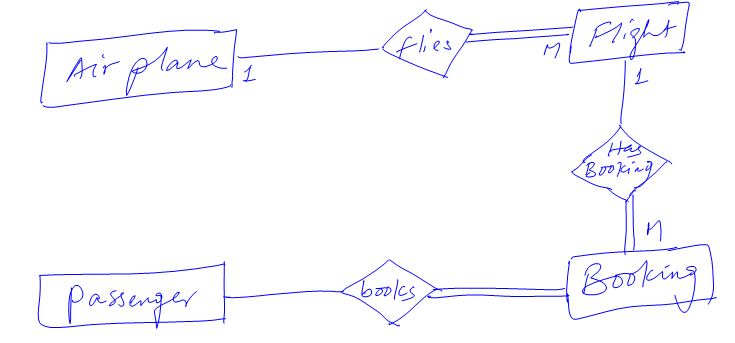
  4. Airline Booking System

I have tried to present you with the simplest design of each of these systems.
    
Hotel Reservation System
In hotel reservation system we will be dealing with these two main entities and two weak entities:
Customers (CustId, Title, FName, LName, DoB, Tel, Email, city, countryRes, Nationality, PassNo)
Rooms (RoomId, Type, Price, Floor, Facilities, Notes)
Bookings (BookingID, CustId, RoomId, DateMade, TimeMade, StartDate, EndDate paid)
RoomsCustomers (CustId, RoomId, StartDate, EndDate, RegistrationDate)

University Registrar System
In registrar system we will be dealing with these entities:

Student(StudId, FName, LName, DoB, Gender, DCode, DoB, PoB, PrevEducation, PrevInstitution,         Program, ProgramType, City, Region, Tel, PoBox, Email, EmergencyContactName, EmergencyContactPhone, AppDate, Approved, ApprovalDate)

Department (DCode, DName, Major,Minor)
Employee (EmpId, FName, LName,DCode, Gender, Qualification, Position, Nationality, DoB, EmpType, EducLevel, HireDate, Tel, Email, PoBox)
Course (CourseNo, CourseName, CreditHour, AcadTermLevel,AcadYearLevel, DCode)
Term ( TermID,Term, AcadamicYear, StartDate, EndDate)

Note: for groups who are working on University Registrar System, tables used are more than the stated and that is left as a challenge for you. Study how your university's registrar system works and drive the rest of the tables.
 Online Shopping System


Products (ProdId, ProdName, Description, SupplierName, Category, Quantity, UnitPrice, Picture)
Customers (CustId, FName, LName, City, State, PostalCode, Country, Phone, Email, CreditCardType, CreditCardNo)
Orders (OrderId, CustId, OrderDate, ShipDate, RequiredDate, ShipperName, Paid)
OrderItems (OrderId, ProdId, Price, Quantity, Discount, ShipDate, OrderItemsId)
Airline Booking System


Passenger (Email, GivenName, SurName)
Airplane (RegNo, ModelNo, Capacity, Airline)
Flight( FlightNo, ModelNo, From, To, DepartTime, DepartDate, ArrivalTime, ArrivalDate)
Booking (Email, FlightNo, BookingDate, Status)

**********

Database Implementation

You have a number of options and a number of DBMS softwares but for now we will be using SQL Server Express edition as our DBMS. When you installed your web developer sql server express was also installed but with no graphic interface to use. Web Developer supports many features that enables us interact with the SQL Server. I am going to show you how you can use web developer to create and test your database.

Take these steps:

1.      Website > Add New Item > SQL Server Database > Add > Yes
2.      View > Database Explorer > Expand your database
3.      R-click on Tables folder > Add New Table
4.      Define fields for the table
5.      Define primary key constraint by R-clicking on the left side button before the column (field) you want to make primary key > set primary key > Save

To see how you can do this and how you can create relationships between tables watch this video:
if you don't want this way go to my channel http://youtube.com/nuux14 and find the video by title


Monday, November 21, 2011

ADO.NET

ADO.NET is a set of classes designed to access data sources.
We have two categories of these classes:
  1. Data Container classes: these classes are merely used for temporary data storage. Data retrieved from database are stored in these classes. Beyond that data container classes can act like your database by maintaining relationships between tables (offline tables not real database tables). This is sometimes referred as Disconnected architecture. These classes include: DataSet
  2. Data Connection classes (Data Providers): these classes are the concrete tools to work with data sources. Data providers help us establish connection with our database, retrieve data, update and many related tasks. These classes include: [provider]Connection.
In ADO.NET we have four Data Providers:
  1. Sql Data Provider
  2. Oracle Data Provider
  3. OleDb Data Provider
  4. ODBC Data Provider
The main common classes in all data providers are: Connection, Command, DataAdapter, & DataReader.

Sql Data Provider:
  • SqlConnection - to establish a connection to our database. This is the first task when we want to deal with database. If the connection is established successfully you have cut a major part of your journey. As a rule every opened connection must be closed after usage. ConnectionString is a property of this class that needs to be set with a number of parameters passed with their values. After this you call Open() method to establish the connection and to disrupt it you call Close() method.
  • SqlCommand - to execute sql statements (commands) against the database.This is second task you should do. Two properties need to be set to use this class. The CommandText is set with an sql statement string. The Connection is set with the connection object we have created.
  • SqlDataAdapter- it is a bridge between database and dataset.
  • SqlDataReader - to read the data returned by SqlCommand
Connection String
To establish a successful connection we need to understand the different ways to construct connection string based on different DBMSs & their different versions. Basically we need to set and pass at least the following parameters in the connection string:
  • Data Source - the name or the address where the database is residing.
  • Initial Catalog , Database or AttachDbFilename - the name and the path of the database file
  • Integrated Security - the type of authentication to use. We have two types of authentication here. Windows Authentication and SQL Server Authentication. If you set this parameter to true you want to use Windows Authentication which is recommended otherwise you are using SQL Server Authentication which requires you to provide two other parameters namely User ID and Password.
  • User Instance - you set this to true if your database is not in the master list of sql server. This means roughly your database is not attached to the sql server.
Let us go down: when building connection string you need to consider the version of sql server you are using and whether or not your database is attached to the sql server.

Option 1: You are using Full version of SQL Server

Criteria:  your database must be attached to the sql server
 Example connection string:
Dim conString As String
conString = "Data Source=(local);Initial Catalog=yourdatabase.mdf;"
& "Integrated Security=true;"

Option 2: You are using SQL Express and Database is attached to server

Example connection string
Dim conString As String
conString = "Data Source=(local)\SQLExpress;Initial Catalog=yourdatabase.mdf;"
& "Integrated Security;"

Option 3: You are using SQL Express and Database is not attached to server

Exmaple connection string
Dim conString As String
conString = "Data Source=(local)\SQLExpress;"
& "AttachDbFilename=|DataDirectory|\yourdatabase.mdf;Integrated Security=true;"
& "User Instance=true;"

Search This Blog (raadi)